13
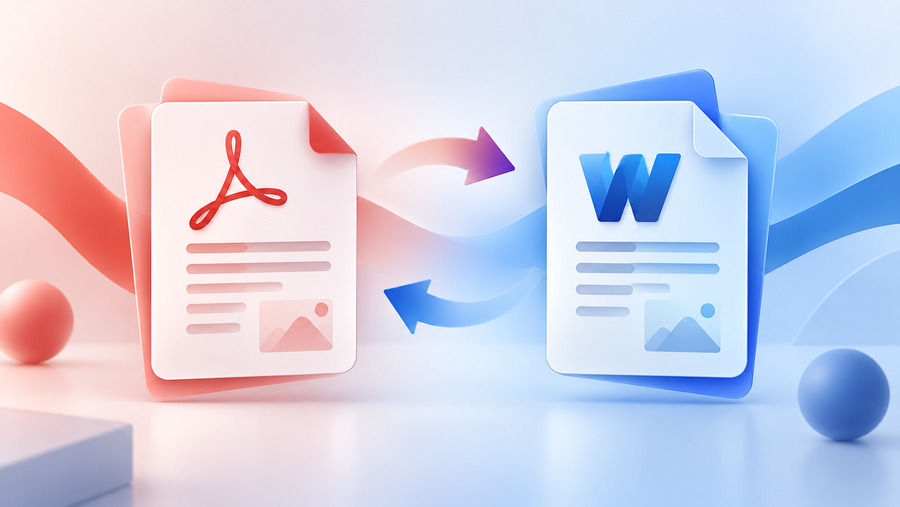
PDF vs Word: Which Format Should You Use and When Should You Convert?
PDF or Word? Learn when to use each format, why PDF-to-Word conversions sometimes change formatting, and how to convert documents more reliably.
PDF and Word documents often contain exactly the same things: paragraphs, headings, photographs, tables, invoices, reports and forms.
Yet they are designed around very different ideas.
That difference explains why a contract may look perfect as a PDF but become awkward when converted into Word—and why a document that is effortless to edit in Word is usually better distributed as a PDF once it is finished.
Understanding what each format is designed to do makes document conversion much less frustrating.
PDF Is Primarily About Preserving Presentation
PDF stands for Portable Document Format.
One of the format's defining characteristics is its ability to represent a document independently of the application, operating system or hardware that originally created it. A PDF can contain the text, fonts, graphics and positioning information required to reproduce a fixed page.
That makes PDF particularly useful when appearance matters.
Think about:
a signed agreement,
a final invoice,
a downloadable brochure,
a certificate,
a research paper,
or a form that must print exactly as expected.
Once the layout is approved, PDF is an excellent distribution format because the recipient does not need the original authoring application to see approximately the same page.
That stability is one reason PDF has become so common for final documents.
DOCX Is Designed Around Editable Structure
A modern Word .docx document works differently.
Microsoft's Office Open XML format represents a word-processing document using structured parts and XML. A Word document understands concepts such as paragraphs, runs of text, styles and other document components.
That structure is valuable when you want to change the document.
You can insert text and allow later paragraphs to reflow. Change a heading style and update multiple headings. Move a table. Track revisions. Add comments. Reorganize sections.
This is why Word is usually more convenient during the writing and editing stage.
A useful mental model is:
DOCX is an editable document model. PDF is a finished page representation.
There are exceptions, of course. PDFs can contain forms, annotations, tagged structure and many other advanced features. DOCX documents also contain page-layout information. But the distinction remains useful when deciding which format to choose.
Why Does PDF-to-Word Conversion Sometimes Look Wrong?
This is probably the most important thing to understand about PDF conversion.
A normal PDF may know that one text object begins at a particular position on a page and another object appears somewhere else. That does not necessarily mean it explicitly stores those objects as a logical Word-style paragraph, table or column.
Microsoft explains that Word has to infer document structure when opening a PDF. It attempts to determine which PDF elements should become headings, lists, tables, paragraphs and other Word objects.
That reconstruction can work extremely well for straightforward, text-heavy documents.
It becomes harder with complicated layouts.
Multi-column newsletters, unusual tables, text wrapped around graphics, complex footnotes, page decorations and typography effects can all require interpretation.
Microsoft specifically notes that elements such as some tables, page borders, tracked changes, multi-page footnotes, bookmarks and certain font effects may not convert perfectly.
So when a converted file differs from the original, it does not necessarily mean the converter “lost” data. It may be attempting to reconstruct editable structure that the PDF never stored in the same way.
Scanned PDF vs Digital PDF
Two PDFs that look identical on screen can behave completely differently during conversion.
A digitally generated PDF often contains actual text characters. You can usually select a sentence, copy it and search for individual words.
A scanned PDF may instead contain photographs of pages.
To your eyes, those photographs clearly contain letters. To ordinary text extraction, however, they may simply be pixels.
That type of document needs Optical Character Recognition, or OCR, to convert the visible characters into machine-readable text.
A quick test is to try selecting individual words in the PDF. If you cannot meaningfully select or search the text, OCR may be required before expecting an editable Word document.
Even OCR is not perfect. Low-resolution scans, unusual fonts, handwriting, skewed pages and complex tables can reduce recognition accuracy.
For important documents, always proofread the converted text.
When Should You Use Word?
Use DOCX when the recipient is expected to continue editing.
A draft report being reviewed by colleagues belongs naturally in an editable format. So does a reusable proposal template, working manuscript, meeting agenda or document that requires tracked changes.
Word is also preferable when the underlying document structure matters more than locking the visual presentation.
That makes collaboration easier.
When Should You Use PDF?
PDF is usually the stronger choice once a document is finalized and the recipient primarily needs to read, print, download or archive it.
For example, imagine sending a résumé as an editable Word file. Font availability, application versions and layout differences can potentially affect presentation. A PDF provides much greater control over the final appearance.
The same principle applies to brochures, finalized reports, invoices and printable forms.
PDF is not “better” than Word.
It solves a different problem.
Word to PDF Conversion Is Usually Easier Than PDF to Word
This asymmetry surprises people.
When converting a structured Word document to PDF, the software already knows what the paragraphs, styles, tables and other objects are. It can render those objects onto fixed pages.
Going backward is more difficult.
A PDF-to-Word converter may have to infer structure from the final appearance.
It is similar to the difference between having the original ingredients and recipe versus looking at a finished cake and trying to determine exactly how it was made.
That is why Word-to-PDF conversion frequently produces predictable results, while PDF-to-Word conversion deserves a careful final review.
How to Get Better Conversion Results
Keep the original document whenever possible.
If you created a file in Word and later exported it to PDF, don't delete the .docx source. Converting the PDF back later introduces unnecessary reconstruction.
When you receive a PDF from someone else, first identify what type of PDF it is.
Is it mostly ordinary selectable text? Conversion may be straightforward.
Is it a scan? You probably need OCR.
Does it contain complex forms, unusual graphics or carefully positioned design elements? Expect some manual cleanup.
After conversion, compare the result against the original rather than assuming that a successful download means every detail survived.
Check page breaks, headings, tables, lists, footnotes and special characters.
For legal, financial, academic or otherwise sensitive material, review the actual content as well—not merely the visual appearance.
What About Privacy When Using an Online Converter?
This question deserves more attention than it often gets.
A file picker in a browser does not automatically mean a file has been uploaded. Modern browsers can give JavaScript access to files explicitly selected by the user, making it technically possible for some tools to process files locally. MDN documents how the File API allows web applications to access user-selected files.
Other converters perform processing on a server and therefore must transmit the file.
Neither architecture is automatically good or bad, but you should understand which one you are using when documents contain confidential information.
Before uploading sensitive files to an unfamiliar service, consider whether you understand its processing and retention practices.
For highly confidential documents, local/offline workflows can be preferable.
PDF and Word Are Partners, Not Competitors
There is no reason to choose one format forever.
A productive workflow often uses both.
Write and revise in DOCX.
Share drafts in DOCX when collaborators need to edit.
Export the approved version to PDF.
Keep the editable original.
Convert a PDF back to Word only when you genuinely need to recover editable content—and recognize that complex layouts may require cleanup.
Once you understand that PDFs emphasize presentation while Word documents emphasize editable structure, most document-format decisions become surprisingly simple.
Choose the format based on what the recipient needs to do next.
If they need to edit, favor Word.
If they need to see the finished document reliably, favor PDF.
Contact
Missing something?
Feel free to request missing tools or give some feedback using our contact form.
Contact Us